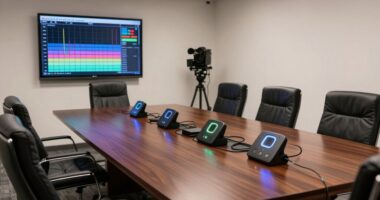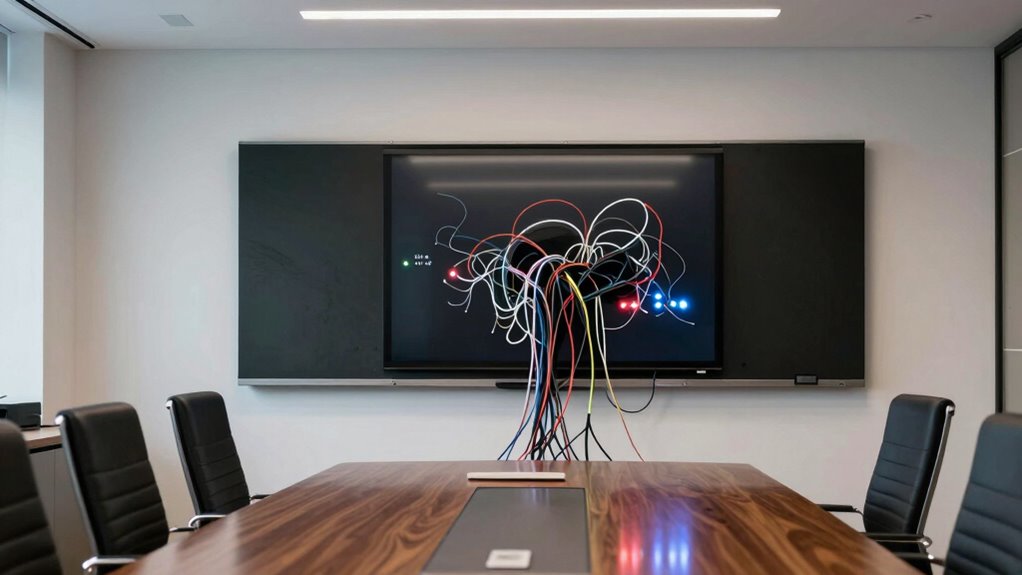

One common mistake that causes endless meeting friction is neglecting proper wireless setup and failing to address interference sources. If your Smart Board is near devices like Wi-Fi routers, microwaves, or cordless phones, it can lose connection or face lag issues. You might not realize that changing Wi-Fi channels or positioning the router away from interference can improve stability. Keep in mind, fixing these issues can make your meetings smoother—there’s more to discover on how to get it right.
Key Takeaways
- Placing the router near interference sources like microwaves or cordless phones causes persistent connectivity issues.
- Using default Wi-Fi channels without optimizing for less crowded frequencies leads to frequent disconnections.
- Relying solely on hardware setup without proper placement and configuration results in unstable smart board connections.
- Lack of user training on troubleshooting and interference mitigation practices prolongs meeting disruptions.
- Ignoring ongoing maintenance and adjustments can cause recurring connectivity problems, frustrating meeting flow.
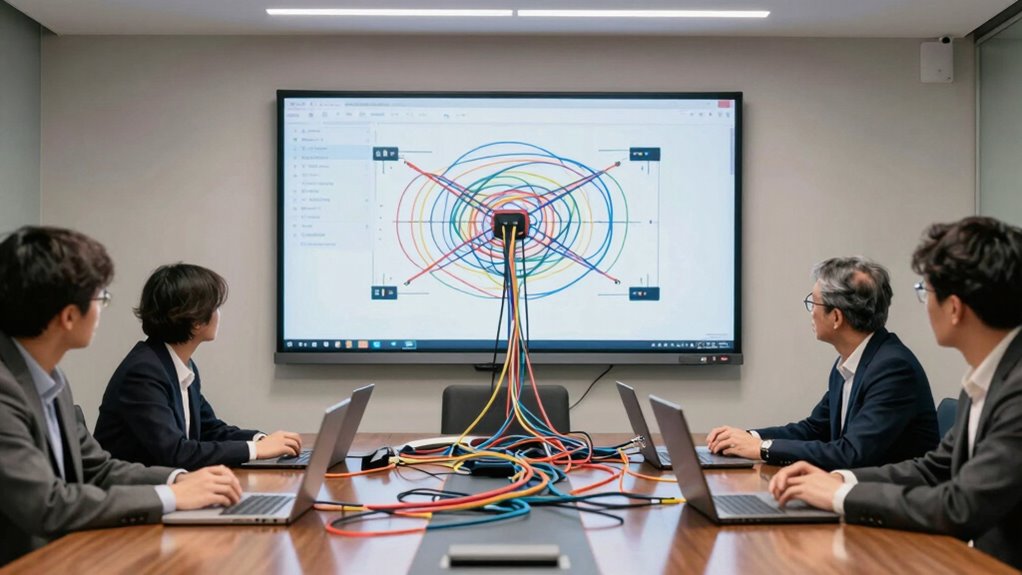
Have you ever struggled to connect your smart board properly during an important presentation? If so, you’re not alone. Many people face frustrating delays and disruptions because they overlook a common mistake—ignoring wireless interference and failing to invest in proper user training. When wireless signals clash or users don’t know how to troubleshoot connection issues efficiently, meetings can become chaotic and unproductive. Understanding these pitfalls can help you avoid endless friction and guarantee smoother presentations.
Wireless interference is one of the biggest culprits behind connectivity issues with smart boards. Devices like Wi-Fi routers, cordless phones, microwaves, and even other nearby wireless gadgets all compete for the same frequency bands. If you don’t account for this interference, your smart board might disconnect unexpectedly or experience lag during critical moments. To prevent this, you should position your router away from potential sources of interference and consider changing the Wi-Fi channel to a less crowded one. Additionally, using a dedicated network for your smart board can considerably reduce the chances of signal disruption, guaranteeing a stable connection that keeps your presentation flowing seamlessly. Proper wireless network setup plays a crucial role in maintaining reliable connectivity. Implementing a dedicated network specifically for your smart board can further minimize interference from other devices and improve overall performance. Recognizing the importance of wireless interference mitigation strategies can significantly improve overall device performance.
However, hardware setup is only part of the solution. Without proper user training, even the best-connected smart board can become a source of frustration. Many users assume that connecting the device is a one-time setup, but in reality, ongoing familiarity with its features and troubleshooting procedures is vital. When users lack training, they waste valuable time trying to figure out why their device isn’t working, which causes delays and interrupts the meeting flow. Training sessions should cover basic troubleshooting steps, how to reconnect if the device drops, and tips for minimizing wireless interference. When everyone understands how the system works and what to do when problems arise, meetings run smoother, and technical glitches become less of a stumbling block. Furthermore, understanding the top projectors for gaming enthusiasts can help in choosing suitable equipment for different presentation environments. Regular refresher training can also help keep everyone updated on best practices and new features. Addressing wireless interference proactively through education can lead to more reliable device performance and fewer disruptions during presentations.

TP-Link AX1800 WiFi 6 Router (Archer AX21 V5)
- Dual-Band WiFi 6 Router: Faster speeds and reduced congestion
- AX1800 Speed: Up to 1.8 Gbps total bandwidth
- Connect More Devices: Supports multiple devices simultaneously
As an affiliate, we earn on qualifying purchases.
As an affiliate, we earn on qualifying purchases.
Frequently Asked Questions
How Do I Troubleshoot Connectivity Issues With the Smart Board?
To troubleshoot connectivity issues, start by checking your cables and making certain they’re securely connected and well-managed, avoiding loose or tangled cables. Then, perform an interactive calibration to confirm the Smart Board recognizes touch inputs properly. If problems persist, restart the device and update the firmware or drivers. Proper cable management prevents interference, while calibration ensures accurate responsiveness, helping you quickly resolve common connectivity problems and keep meetings running smoothly.
What Are the Best Practices for Initial Smart Board Setup?
When setting up your interactive display, make sure you follow manufacturer instructions carefully, connecting all cables securely and configuring network settings correctly. Conduct user training early to familiarize everyone with basic functions and troubleshooting tips. This proactive approach minimizes setup errors and streamlines future meetings. Regularly update firmware and software to keep the smart board running smoothly, and encourage users to ask questions during initial training to prevent recurring issues.
Can Multiple Devices Connect to the Smart Board Simultaneously?
Yes, multiple devices can connect to a smart board simultaneously, but it depends on device compatibility and connection protocols. Make sure your smart board supports multi-device connections through compatible connection protocols like Wi-Fi, Bluetooth, or USB. Check the smart board’s specifications to confirm if it allows multiple concurrent connections. Using the right protocols and compatible devices helps prevent connection issues, reducing meeting friction and keeping collaboration smooth.
How Often Should the Smart Board Firmware Be Updated?
Don’t wait for things to go south; update your smart board firmware regularly—at least once every few months or when prompted. This keeps your device running smoothly, helps with smart board calibration, and fixes bugs. If an update causes issues, remember you can always do a firmware rollback. Staying current guarantees seamless meetings, preventing tech hiccups from turning into endless frustration.
What Security Measures Protect Wireless Smart Board Connections?
You should implement robust security measures like encryption protocols and device authentication to protect your wireless smart board connections. Encryption guarantees that data transmitted between devices remains confidential, preventing unauthorized access. Device authentication verifies that only trusted devices connect, reducing the risk of security breaches. By actively using these measures, you create a secure environment, preventing disruptions during meetings and safeguarding sensitive information from potential cyber threats.
Wi-Fi interference mitigation tools
As an affiliate, we earn on qualifying purchases.
As an affiliate, we earn on qualifying purchases.
Conclusion
Avoid the common mistake of neglecting proper Smart Board connectivity, or you’ll face endless meeting frustration. Ensuring seamless setup can boost productivity and collaboration. Did you know that 70% of meeting disruptions stem from technical issues? By troubleshooting connectivity early and keeping your software updated, you’ll save time and prevent unnecessary delays. Don’t let connectivity errors hold your team back—invest a few moments now to keep your meetings smooth and efficient.
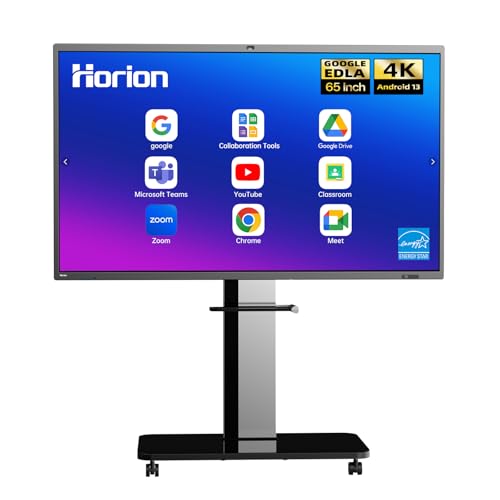
HORION 65-Inch 4K Pro Digital Whiteboard, Smart Board for Office & Business
- 4K Video Conferencing: Includes built-in 48MP camera and microphones
- Wireless Screen Sharing: Supports wireless casting from devices
- Digital Whiteboard: Multi-user touch with <30ms latency
As an affiliate, we earn on qualifying purchases.
As an affiliate, we earn on qualifying purchases.

KEYESTUDIO IOT ESP32 Smart Home Starter Kit for Arduino and Python,Electronics Home Automation Coding Kit, Wooden House DIY Sensor Kit,STEM Educational Set for Adults Teens 15+
- Progressive Project-Based Learning: Build 13 smart home projects step-by-step
- Learn Arduino C++ and MicroPython: Master two industry-standard programming languages
- Create WiFi-Controlled Smart Home: Build and control a wooden house with sensors
As an affiliate, we earn on qualifying purchases.
As an affiliate, we earn on qualifying purchases.